3. Start single camera
This guide provides instructions on how to launch the camera node with a colored point cloud feature enabled using ROS 2.
Contents:
3.1. Start single camera
Command to start single camera node
On terminal 1: Launch camera node, example of gemini_330 series :
cd ~/ros2_ws/
source /opt/ros/humble/setup.bash # or source /opt/ros/humble/setup.zsh
source install/setup.bash  # or source install/setup.szh
ros2 launch orbbec_camera orbbec_camera.launch.py config_file_path:=gemini_330_series.yaml
3.2. Visualizing Data in RViz2
To view the PointCloud or Image data, use RViz2:
On terminal 2: Launch rviz2
cd ~/ros2_ws/
source /opt/ros/humble/setup.bash # or source /opt/ros/humble/setup.zsh
source install/setup.bash    # or source install/setup.szh
rviz2         # run rviz2
Select the topic you wish to visualize from the list of published topics.
Add the selected topic to RViz2 to start viewing the data.
3.3. Display view topics service
Once the camera node is running, it will publish data on several ROS topics. Below is a list of the available topics:
By executing ros2 topic list, the following topics are displayed:
On terminal 3:
ros2 topic list
Other , to display services/ parameters , example as follow
ros2 service list
ros2 param list
Get device info:
ros2 service call /camera/get_device_info orbbec_camera_msgs/srv/GetDeviceInfo '{}'
Get SDK version:
ros2 service call /camera/get_sdk_version orbbec_camera_msgs/srv/GetString '{}'
Set auto exposure:
ros2 service call /camera/set_color_auto_exposure std_srvs/srv/SetBool '{data: false}'
Save point cloud:
ros2 service call /camera/save_point_cloud std_srvs/srv/Empty "{}"
3.4. Example Visualizations
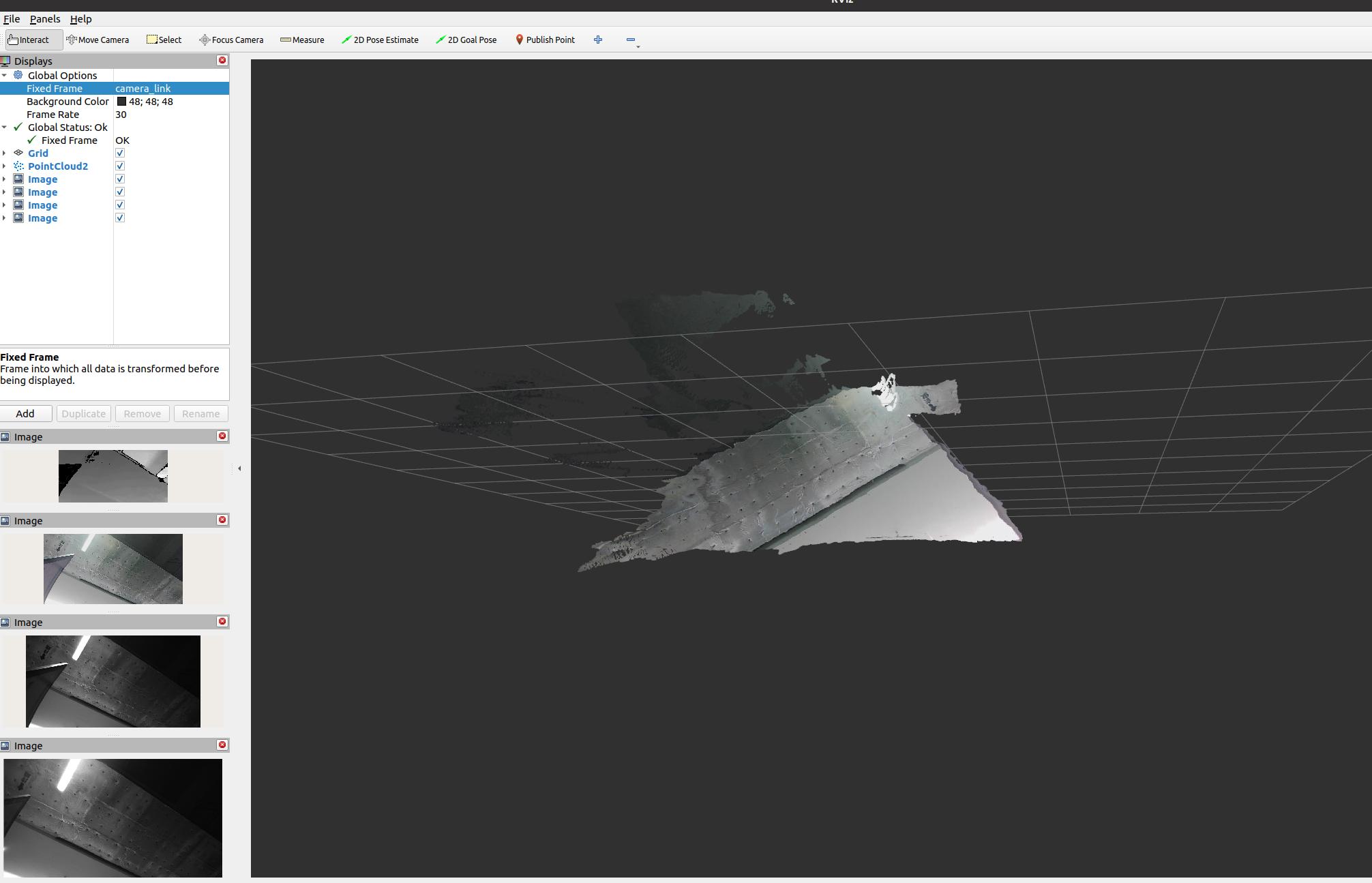
Here are examples of how the visualization might appear in RViz2:
PointCloud Visualization
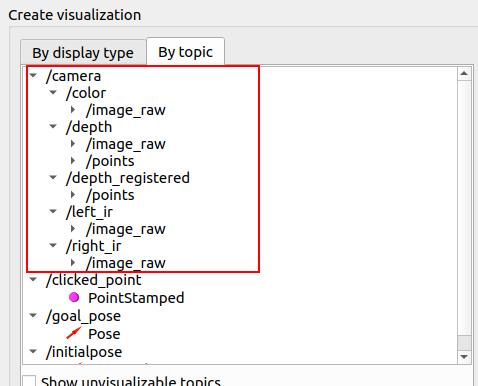
Image Data Visualization
3.5. TF tree diagram
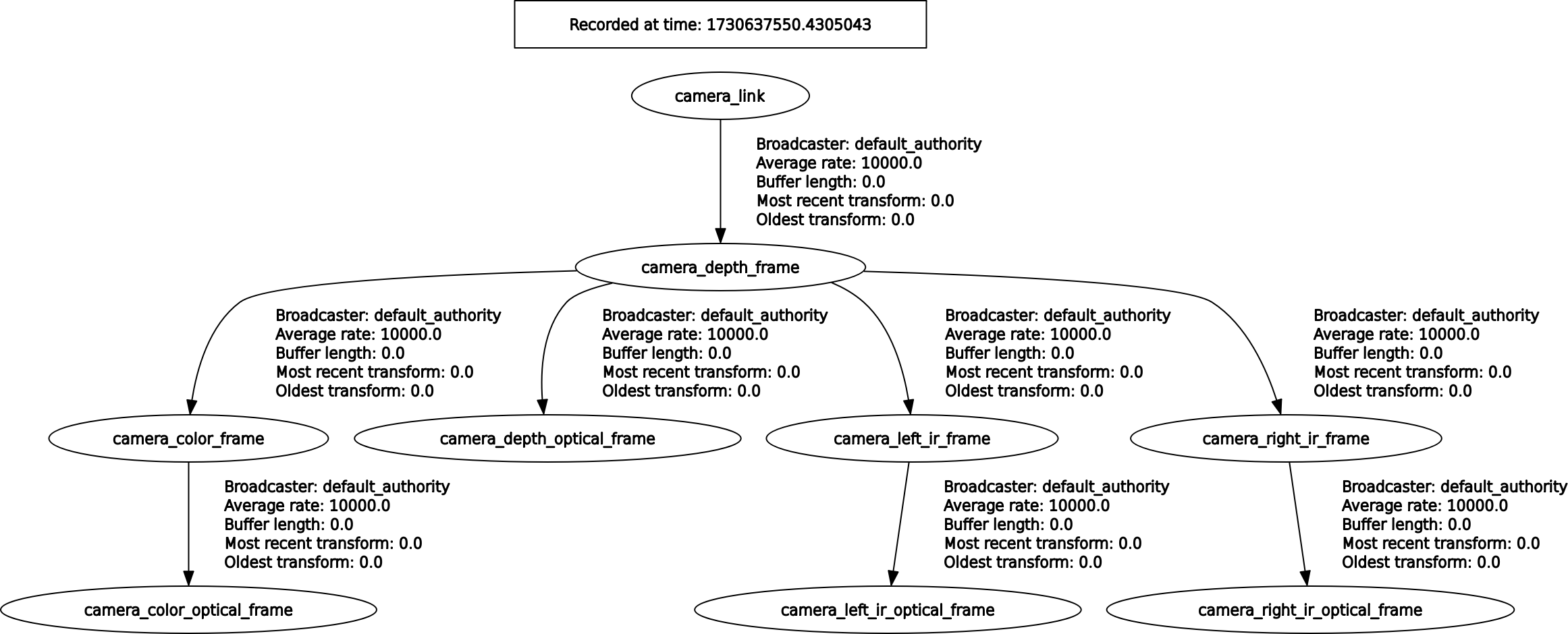
To get the TF tree
ros2 run rqt_tf_tree rqt_tf_tree --force-discover
The TF tree diagram for the OrbbecSDK_ROS2 is illustrated below: